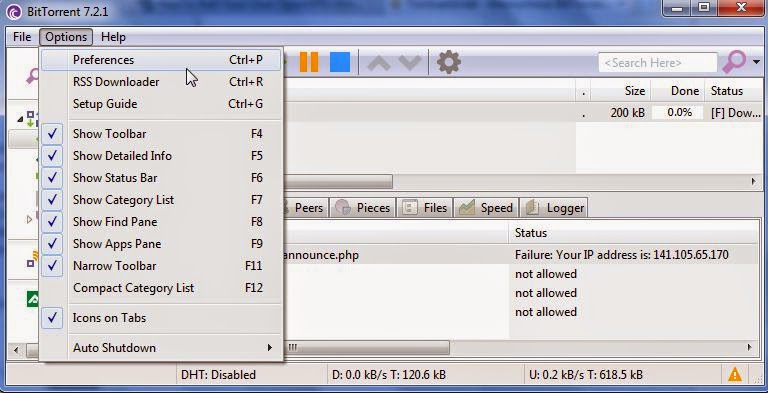
In computer networks, a proxy server is a server (a computer system or an application) that acts as an intermediary for requests from clients seeking resources from other servers. A client connects to the proxy server, requesting some service, such as a file, connection, web page, or other resource available from a different server and the proxy server evaluates the request as a way to simplify and control its complexity. Proxies were invented to add structure and encapsulation to distributed systems.[1] Today, most proxies are web proxies, facilitating access to content on the World Wide Web and providing anonymity.
Types of proxy
A proxy server may reside on the user's local computer, or at various points between the user's computer and destination servers on the Internet.
- A proxy server that passes requests and responses unmodified is usually called a gateway or sometimes a tunneling proxy.
- A forward proxy is an Internet-facing proxy used to retrieve from a wide range of sources (in most cases anywhere on the Internet).
- A reverse proxy is usually an Internet-facing proxy used as a front-end to control and protect access to a server on a private network. A reverse proxy commonly also performs tasks such as load-balancing, authentication, decryption or caching.
1.1 Open Proxies
An open proxy is a forwarding proxy server that is accessible by any Internet user. Gordon Lyon estimates there are "hundreds of thousands" of open proxies on the Internet. An anonymous open proxy allows users to conceal their IP address while browsing the Web or using other Internet services. There are varying degrees of anonymity however, as well as a number of methods of 'tricking' the client into revealing itself regardless of the proxy being used.
1.2 Reverse proxies
A reverse proxy (or surrogate) is a proxy server that appears to clients to be an ordinary server. Requests are forwarded to one or more proxy servers which handle the request. The response from the proxy server is returned as if it came directly from the origin server, leaving the client no knowledge of the origin servers. Reverse proxies are installed in the neighborhood of one or more web servers. All traffic coming from the Internet and with a destination of one of the neighborhood's web servers goes through the proxy server. The use of "reverse" originates in its counterpart "forward proxy" since the reverse proxy sits closer to the web server and serves only a restricted set of websites. There are several reasons for installing reverse proxy servers:
- Encryption / SSL acceleration: when secure web sites are created, the SSL encryption is often not done by the web server itself, but by a reverse proxy that is equipped with SSL acceleration hardware. See Secure Sockets Layer. Furthermore, a host can provide a single "SSL proxy" to provide SSL encryption for an arbitrary number of hosts; removing the need for a separate SSL Server Certificate for each host, with the downside that all hosts behind the SSL proxy have to share a common DNS name or IP address for SSL connections. This problem can partly be overcome by using the SubjectAltName feature of X.509 certificates.
- Load balancing: the reverse proxy can distribute the load to several web servers, each web server serving its own application area. In such a case, the reverse proxy may need to rewrite the URLs in each web page (translation from externally known URLs to the internal locations).
- Serve/cache static content: A reverse proxy can offload the web servers by caching static content like pictures and other static graphical content.
- Compression: the proxy server can optimize and compress the content to speed up the load time.
- Spoon feeding: reduces resource usage caused by slow clients on the web servers by caching the content the web server sent and slowly "spoon feeding" it to the client. This especially benefits dynamically generated pages.
- Security: the proxy server is an additional layer of defense and can protect against some OS and Web Server specific attacks. However, it does not provide any protection from attacks against the web application or service itself, which is generally considered the larger threat.
- Extranet Publishing: a reverse proxy server facing the Internet can be used to communicate to a firewall server internal to an organization, providing extranet access to some functions while keeping the servers behind the firewalls. If used in this way, security measures should be considered to protect the rest of your infrastructure in case this server is compromised, as its web application is exposed to attack from the Internet.

Uses of proxy servers
2.1 Monitoring and filtering
2.1.1
Content-control software
A content-filtering web proxy server provides administrative control over the content that may be relayed in one or both directions through the proxy. It is commonly used in both commercial and non-commercial organizations (especially schools) to ensure that Internet usage conforms to acceptable use policy.
A content filtering proxy will often support user authentication, to control web access. It also usually produces logs, either to give detailed information about the URLs accessed by specific users, or to monitor bandwidth usage statistics. It may also communicate to daemon-based and/or ICAP-based antivirus software to provide security against virus and other malware by scanning incoming content in real time before it enters the network.
Many work places, schools and colleges restrict the web sites and online services that are made available in their buildings. Governments also censor undesirable content. This is done either with a specialized proxy, called a content filter (both commercial and free products are available), or by using a cache-extension protocol such as ICAP, that allows plug-in extensions to an open caching architecture.
Requests may be filtered by several methods, such as a URL or DNS blacklists blacklist, URL regex filtering, MIME filtering, or content keyword filtering. Some products have been known to employ content analysis techniques to look for traits commonly used by certain types of content providers.[citation needed] Blacklists are often provided and maintained by web-filtering companies, often grouped into categories (pornography, gambling, shopping, social networks, etc.).
Assuming the requested URL is acceptable, the content is then fetched by the proxy. At this point a dynamic filter may be applied on the return path. For example, JPEG files could be blocked based on fleshtone matches, or language filters could dynamically detect unwanted language. If the content is rejected then an HTTP fetch error may be returned to the requester.
Most web filtering companies use an internet-wide crawling robot that assesses the likelihood that a content is a certain type. The resultant database is then corrected by manual labor based on complaints or known flaws in the content-matching algorithms.
Some proxies scan outbound content, e.g., for data loss prevention; or scan content for malicious software.
2.1.2
Filtering of encrypted data
Web filtering proxies are not able to peer inside secure sockets HTTP transactions, assuming the chain-of-trust of SSL/TLS has not been tampered with.
The SSL/TLS chain-of-trust relies on trusted root certificate authorities. In a workplace setting where the client is managed by the organization, trust might be granted to a root certificate whose private key is known to the proxy. Consequently, a root certificate generated by the proxy is installed into the browser CA list by IT staff.
In such situations, proxy analysis of the contents of a SSL/TLS transaction becomes possible. The proxy is effectively operating a man-in-the-middle attack, allowed by the client's trust of a root certificate the proxy owns.
2.1.3
Bypassing filters and censorship
If the destination server filters content based on the origin of the request, the use of a proxy can circumvent this filter. For example, a server using IP-based geolocation to restrict its service to a certain country can be accessed using a proxy located in that country to access the service.
Web proxies are the most common means of bypassing government censorship, although no more than 3% of Internet users use any circumvention tools.
In some cases users can circumvent proxies which filter using blacklists using services designed to proxy information from a non-blacklisted location.
2.1.4
Logging and eavesdropping
Proxies can be installed in order to eavesdrop upon the data-flow between client machines and the web. All content sent or accessed – including passwords submitted and cookies used – can be captured and analyzed by the proxy operator. For this reason, passwords to online services (such as webmail and banking) should always be exchanged over a cryptographically secured connection, such as SSL. By chaining proxies which do not reveal data about the original requester, it is possible to obfuscate activities from the eyes of the user's destination. However, more traces will be left on the intermediate hops, which could be used or offered up to trace the user's activities. If the policies and administrators of these other proxies are unknown, the user may fall victim to a false sense of security just because those details are out of sight and mind. In what is more of an inconvenience than a risk, proxy users may find themselves being blocked from certain Web sites, as numerous forums and Web sites block IP addresses from proxies known to have spammed or trolled the site. Proxy bouncing can be used to maintain your privacy.
2.2 Improving performance
A caching proxy server accelerates service requests by retrieving content saved from a previous request made by the same client or even other clients. Caching proxies keep local copies of frequently requested resources, allowing large organizations to significantly reduce their upstream bandwidth usage and costs, while significantly increasing performance. Most ISPs and large businesses have a caching proxy. Caching proxies were the first kind of proxy server. Web proxies are commonly used to cache web pages from a web server. Poorly implemented caching proxies can cause problems, such as an inability to use user authentication.
A proxy that is designed to mitigate specific link related issues or degradations is a Performance Enhancing Proxy (PEPs). These typically used to improve TCP performance in the presence of high round-trip times or high packet loss (such as wireless or mobile phone networks); or highly asynchronous links featuring very different upload and download rates. PEPs can make more efficient use of the network, for example by merging TCP ACKs or compressing data sent at the application layer.
Another important use of the proxy server is to reduce the hardware cost. An organization may have many systems on the same network or under control of a single server, prohibiting the possibility of an individual connection to the Internet for each system. In such a case, the individual systems can be connected to one proxy server, and the proxy server connected to the main server.
2.3 Translation
A translation proxy is a proxy server that is used to localize a website experience for different markets. Traffic from global audiences is routed through the translation proxy to the source website. As visitors browse the proxied site, requests go back to the source site where pages are rendered. Original language content in the response is replaced by translated content as it passes back through the proxy. The translations used in a translation proxy can be either machine translation, human translation, or a combination of machine and human translation. Different translation proxy implementations have different capabilities. Some allow further customization of the source site for local audiences such as excluding source content or substituting source content with original local content.
2.4 Accessing services anonymously
An anonymous proxy server (sometimes called a web proxy) generally attempts to anonymize web surfing. There are different varieties of anonymizers. The destination server (the server that ultimately satisfies the web request) receives requests from the anonymizing proxy server, and thus does not receive information about the end user's address. The requests are not anonymous to the anonymizing proxy server, however, and so a degree of trust is present between the proxy server and the user. Many proxy servers are funded through a continued advertising link to the user.
Access control: Some proxy servers implement a logon requirement. In large organizations, authorized users must log on to gain access to the web. The organization can thereby track usage to individuals. Some anonymizing proxy servers may forward data packets with header lines such as HTTP_VIA, HTTP_X_FORWARDED_FOR, or HTTP_FORWARDED, which may reveal the IP address of the client. Other anonymizing proxy servers, known as elite or high-anonymity proxies, only include the REMOTE_ADDR header with the IP address of the proxy server, making it appear that the proxy server is the client. A website could still suspect a proxy is being used if the client sends packets which include a cookie from a previous visit that did not use the high-anonymity proxy server. Clearing cookies, and possibly the cache, would solve this problem.
2.4.1
QA geotargeted advertising
Advertisers use proxy servers for validating, checking and quality assurance of geotargeted ads. A geotargeting ad server checks the request source IP address and uses a geo-IP database to determine the geographic source of requests. Using a proxy server that is physically located inside a specific country or a city gives advertisers the ability test geotargeted ads.
2.5 Security
A proxy can keep the internal network structure of a company secret by using network address translation, which can help the security of the internal network. This makes requests from machines and users on the local network anonymous. Proxies can also be combined with firewalls.
An incorrectly configured proxy can provide access to a network otherwise isolated from the Internet.
2.5.1
Cross-domain resources
Proxies allow web sites to make web requests to externally hosted resources (e.g. images, music files, etc.) when cross-domain restrictions prohibit the web site from linking directly to the outside domains. Proxies also allow the browser to make web requests to externally hosted content on behalf of a website when cross-domain restrictions (in place to protect websites from the likes of data theft) prohibit the browser from directly accessing the outside domains.
3 Implementations of proxies
3.1 Web proxy servers
Web proxies forward HTTP requests. Some web proxies allow the HTTP CONNECT[12] to set up forwarding of arbitrary data through the connection; normally this is only allowed to port 443 to allow forwarding of HTTPS traffic.
Examples of web proxy servers include Apache (with mod_proxy or Traffic Server), HAProxy, IIS configured as proxy (e.g., with Application Request Routing), Nginx, Privoxy, Squid, Varnish (reverse proxy only), WinGate, Ziproxy, Tinyproxy and RabbIT4.
3.2 SOCKS proxy
SOCKS also forwards arbitrary data after a connection phase, and is similar to HTTP CONNECT in web proxies.
3.3 Transparent proxy
Also known as an intercepting proxy, inline proxy, or forced proxy, a transparent proxy intercepts normal communication at the network layer without requiring any special client configuration. Clients need not be aware of the existence of the proxy. A transparent proxy is normally located between the client and the Internet, with the proxy performing some of the functions of a gateway or router.
RFC 2616 (Hypertext Transfer Protocol—HTTP/1.1) offers standard definitions:
"A 'transparent proxy' is a proxy that does not modify the request or response beyond what is required for proxy authentication and identification".
"A 'non-transparent proxy' is a proxy that modifies the request or response in order to provide some added service to the user agent, such as group annotation services, media type transformation, protocol reduction, or anonymity filtering".
TCP Intercept is a traffic filtering security feature that protects TCP servers from TCP SYN flood attacks, which are a type of denial-of-service attack. TCP Intercept is available for IP traffic only.
In 2009 a security flaw in the way that transparent proxies operate was published by Robert Auger, and the Computer Emergency Response Team issued an advisory listing dozens of affected transparent and intercepting proxy servers.
3.3.1
Purpose
Intercepting proxies are commonly used in businesses to enforce acceptable use policy, and to ease administrative overheads, since no client browser configuration is required. This second reason however is mitigated by features such as Active Directory group policy, or DHCP and automatic proxy detection.
Intercepting proxies are also commonly used by ISPs in some countries to save upstream bandwidth and improve customer response times by caching. This is more common in countries where bandwidth is more limited (e.g. island nations) or must be paid for.
3.3.2
Issues
The diversion / interception of a TCP connection creates several issues. Firstly the original destination IP and port must somehow be communicated to the proxy. This is not always possible (e.g., where the gateway and proxy reside on different hosts). There is a class of cross site attacks that depend on certain behaviour of intercepting proxies that do not check or have access to information about the original (intercepted) destination. This problem may be resolved by using an integrated packet-level and application level appliance or software which is then able to communicate this information between the packet handler and the proxy.
Intercepting also creates problems for HTTP authentication, especially connection-oriented authentication such as NTLM, since the client browser believes it is talking to a server rather than a proxy. This can cause problems where an intercepting proxy requires authentication, then the user connects to a site which also requires authentication.
Finally intercepting connections can cause problems for HTTP caches, since some requests and responses become uncacheable by a shared cache.
3.3.3
Implementation methods
In integrated firewall / proxy servers where the router/firewall is on the same host as the proxy, communicating original destination information can be done by any method, for example Microsoft TMG or WinGate.
Interception can also be performed using Cisco's WCCP (Web Cache Control Protocol). This proprietary protocol resides on the router and is configured from the cache, allowing the cache to determine what ports and traffic is sent to it via transparent redirection from the router. This redirection can occur in one of two ways: GRE Tunneling (OSI Layer 3) or MAC rewrites (OSI Layer 2).
Once traffic reaches the proxy machine itself interception is commonly performed with NAT (Network Address Translation). Such setups are invisible to the client browser, but leave the proxy visible to the web server and other devices on the internet side of the proxy. Recent Linux and some BSD releases provide TPROXY (transparent proxy) which performs IP-level (OSI Layer 3) transparent interception and spoofing of outbound traffic, hiding the proxy IP address from other network devices.
3.3.4
Detection
There are several methods that can often be used to detect the presence of an intercepting proxy server:
- By comparing the client's external IP address to the address seen by an external web server, or sometimes by examining the HTTP headers received by a server. A number of sites have been created to address this issue, by reporting the user's IP address as seen by the site back to the user in a web page. Google also returns the IP address as seen by the page if the user searches for "IP".
- By comparing the result of online IP checkers when accessed using https vs http, as most intercepting proxies do not intercept SSL. If there is suspicion of SSL being intercepted, one can examine the certificate associated with any secure web site, the root certificate should indicate whether it was issued for the purpose of intercepting.
- By comparing the sequence of network hops reported by a tool such as traceroute for a proxied protocol such as http (port 80) with that for a non proxied protocol such as SMTP (port 25).
- By attempting to make a connection to an IP address at which there is known to be no server. The proxy will accept the connection and then attempt to proxy it on. When the proxy finds no server to accept the connection it may return an error message or simply close the connection to the client. This difference in behaviour is simple to detect. For example most web browsers will generate a browser created error page in the case where they cannot connect to an HTTP server but will return a different error in the case where the connection is accepted and then closed.
- By serving the end-user specially programmed Adobe Flash SWF applications or Sun Java applets that send HTTP calls back to their server.
3.4 CGI proxy
A CGI web proxy accepts target URLs using a Web form in the user's browser window, processes the request, and returns the results to the user's browser. Consequently it can be used on a device or network that does not allow "true" proxy settings to be changed. The first recorded CGI proxy was developed by American computer scientist Richard Windmann.
Some CGI proxies were set up for purposes such as making websites more accessible to disabled people, but have since been shut down due to excessive traffic, usually caused by a third party advertising the service as a means to bypass local filtering. Since many of these users don't care about the collateral damage they are causing, it became necessary for organizations to hide their proxies, disclosing the URLs only to those who take the trouble to contact the organization and demonstrate a genuine need.[citation needed]
3.5 Anonymous HTTPS proxy
Users wanting to bypass web filtering, that want to prevent anyone from monitoring what they are doing, will typically search the internet for an open and anonymous HTTPS transparent proxy. They will then program their browser to proxy all requests through the web filter to this anonymous proxy. Those requests will be encrypted with https. The web filter cannot distinguish these transactions from, say, a legitimate access to a financial website. Thus, content filters are only effective against unsophisticated users.
Use of HTTPS proxies are detectable even without examining the encrypted data, based simply on firewall monitoring of addresses for frequency of use and bandwidth usage. If a massive amount of data is being directed through an address that is within an ISP address range such as Comcast, it is likely a home-operated proxy server. Either the single address or the entire ISP address range is then blocked at the firewall to prevent further connections.
3.6 Suffix proxy
A suffix proxy allows a user to access web content by appending the name of the proxy server to the URL of the requested content (e.g. "en.wikipedia.org.SuffixProxy.com"). Suffix proxy servers are easier to use than regular proxy servers but they do not offer high levels of anonymity and their primary use is for bypassing web filters. However, this is rarely used due to more advanced web filters.
3.7 Tor onion proxy software
Tor (short for The Onion Router) is a system intended to enable online anonymity. Tor client software routes Internet traffic through a worldwide volunteer network of servers in order to conceal a user's location or usage from someone conducting network surveillance or traffic analysis. Using Tor makes it more difficult to trace Internet activity, including "visits to Web sites, online posts, instant messages and other communication forms", back to the user. It is intended to protect users' personal freedom, privacy, and ability to conduct confidential business by keeping their internet activities from being monitored.
"Onion routing" refers to the layered nature of the encryption service: The original data are encrypted and re-encrypted multiple times, then sent through successive Tor relays, each one of which decrypts a "layer" of encryption before passing the data on to the next relay and ultimately the destination. This reduces the possibility of the original data being unscrambled or understood in transit.
The Tor client is free software, and there are no additional charges to use the network.
3.8 I2P anonymous proxy
The I2P anonymous network ('I2P') is a proxy network aiming at online anonymity. It implements garlic routing, which is an enhancement of Tor's onion routing. I2P is fully distributed and works by encrypting all communications in various layers and relaying them through a network of routers run by volunteers in various locations. By keeping the source of the information hidden, I2P offers censorship resistance. The goals of I2P are to protect users' personal freedom, privacy, and ability to conduct confidential business.
Each user of I2P runs an I2P router on their computer (node). The I2P router takes care of finding other peers and building anonymizing tunnels through them. I2P provides proxies for all protocols (HTTP, irc, SOCKS, ...).
The software is free and open-source, and the network is free of charge to use.
3.9 Proxy vs. NAT
Most of the time 'proxy' refers to a layer-7 application on the OSI reference model. However, another way of proxying is through layer-3 and is known as Network Address Translation (NAT). The difference between these two technologies is the tier in which they operate, and the way of configuring the clients to use them as a proxy.
In client configuration of NAT, configuring the gateway is sufficient. However, for client configuration of a layer-7 proxy, the destination of the packets that the client generates must always be the proxy server (layer-7), then the proxy server reads each packet and finds out the true destination.
Because NAT operates at layer-3, it is less resource-intensive than the layer-7 proxy, but also less flexible. As we compare these two technologies, we might encounter a terminology known as 'transparent firewall'. Transparent firewall means that the layer-3 proxy uses the layer-7 proxy advantages without the knowledge of the client. The client presumes that the gateway is a NAT in layer-3, and it does not have any idea about the inside of the packet, but through this method the layer-3 packets are sent to the layer-7 proxy for investigation.
3.10 DNS proxy
A DNS proxy server takes DNS queries from a (usually local) network and forwards them to an Internet Domain Name Server. It may also cache DNS records.
Like on
Facebook
Follow on
Twitter
Add on
Google+